
BLOG
How to Fix Antimalware Service Executable (MsMpEng.exe) High CPU & Disk Usage


If your Windows PC has suddenly become slow, unresponsive, or the fan is running at full speed, there is a good chance that a background process called Antimalware Service Executable — also known as MsMpEng.exe — is the culprit. This guide explains exactly what this process is, why it causes high CPU and disk usage, and how to fix it safely on both Windows 10 and Windows 11.
Whether you want a quick temporary fix, a smarter scan schedule, or a permanent solution, we have you covered — step by step.
What Is Antimalware Service Executable and Why Does It Run?
Antimalware Service Executable (MsMpEng.exe) is the core background process of Microsoft Defender Antivirus — the built-in security software that comes with every modern version of Windows. Think of it as a security guard stationed inside your computer, constantly watching for threats.
Here is what it does in the background:
- Real-time protection — it monitors every file you open, download, or run and checks it for malware.
- Scheduled scans — it periodically performs full or quick system scans to detect hidden threats.
- Threat database updates — it downloads the latest virus definitions from Microsoft to stay current.
This process runs continuously in the background. Most of the time, you will never notice it. However, during intensive scans or on lower-powered PCs, it can temporarily consume a large share of your CPU and disk resources — causing lag, slowdowns, and a frustrating user experience.
Is Antimalware Service Executable a Virus? (Spoiler: No)
This is one of the most common questions users ask — and the answer is no. MsMpEng.exe is a legitimate, digitally signed Microsoft system process. It is not malware.
You can verify this yourself in Task Manager:
- Press Ctrl + Shift + Esc to open Task Manager.
- Find ‘Antimalware Service Executable’ in the list.
- Right-click it and select ‘Open file location.’
- The file should be located at: C:\ProgramData\Microsoft\Windows Defender\Platform\[version]\MsMpEng.exe
If the file is in a different location (such as your Downloads folder or a temp directory), that could be a sign of a genuine threat. In that case, run a scan with a reputable third-party antivirus immediately.
Top Reasons Why It Causes High CPU and Disk Usage
1. Scheduled or Full System Scans
The most common cause. Windows Defender performs automatic scans on a schedule — typically during periods of inactivity. But if your PC is in use at that time, the scan can hog your CPU and disk resources. Full system scans are particularly intensive, as they examine every single file on your drive.
2. Real-Time Protection During High-Demand Tasks
Every time you launch a game, open a browser, or run a program, Defender scans those files in real time. For most tasks this is instant and invisible — but during gaming, video editing, or large file transfers, this constant scanning can create a noticeable bottleneck.
3. Software Conflicts and Scanning Loops
If you have another antivirus program installed alongside Windows Defender, they may conflict with each other — both trying to scan the same files simultaneously. This can cause a scanning loop, where the CPU and disk usage spike indefinitely. Outdated Windows versions or corrupted system files can also trigger abnormal behavior in MsMpEng.exe.
⚠️ Security Considerations Before You Start
Before making any changes, it is important to understand the tradeoff: Windows Defender exists to protect your PC from malware and ransomware. Disabling or limiting it reduces your protection.
Use the table below to choose the right fix for your situation:
| Your Situation | Recommended Action | Risk Level |
| PC slowing down right now | End task in Task Manager (temporary) | �� Low |
| Scans interrupt gaming/work | Schedule scans to run at night | �� Low |
| Specific apps/folders always slow | Add exclusions in Windows Security | �� Low |
| Constantly high CPU all the time | Update Windows + clean boot | �� Medium |
| Permanently disable Defender | Group Policy or Registry (use 3rd-party AV first) | �� High |
⚠️ Warning: Never permanently disable Windows Defender without first installing a trusted alternative such as Malwarebytes, Bitdefender, Kaspersky, or Norton. Running a PC with no antivirus protection is extremely risky.
Method 1: Quick Temporary Fix — End the Task in Task Manager
This is the fastest way to immediately stop MsMpEng.exe from consuming resources. However, it is only temporary — the process will restart when you reboot your PC.

Steps:
- Press Ctrl + Shift + Esc to open Task Manager.
- Click ‘More details’ at the bottom if you see the simple view.
- Scroll through the Processes list and find ‘Antimalware Service Executable.’
- Right-click it and select ‘End task.’
- Click ‘End process’ in the confirmation dialog.
�� Note: Your PC will be without real-time protection until the next restart. Do not visit untrusted websites or download files during this window.
Method 2: Add Exclusions (Safest Long-Term Fix)
Adding exclusions tells Windows Defender to skip scanning specific folders, files, or processes. This is the safest long-term fix — it reduces CPU and disk usage without disabling your security entirely.
Step-by-Step Guide to Add Exclusions
- Click the Start Menu and open Settings (the gear icon).
- Go to Update & Security > Windows Security.
- Click ‘Virus & threat protection.’
- Scroll down and click ‘Manage settings’ under Virus & threat protection settings.
- Scroll to the bottom and click ‘Add or remove exclusions.’
- Click ‘+ Add an exclusion’ and choose Folder, File, or Process.
- Navigate to the folder or file you want to exclude and click ‘Select Folder.’
Best Folders and Files to Exclude for Maximum Performance
Be selective about what you exclude. Only exclude locations that you trust completely and that are frequently scanned:
- Game installation folders (e.g., C:\Program Files\Steam\steamapps)
- Browser cache folders (e.g., your Chrome or Firefox cache directory)
- Development project folders (e.g., C:\Projects or C:\dev)
- Video editing project folders with large media files
⚠️ Warning: Do NOT exclude your entire C:\ drive or your Windows system folder. This would leave critical areas completely unprotected.
How to Verify the Fix Worked
After adding exclusions, wait 10 to 15 minutes. Then open Task Manager and check the CPU and Disk columns for the Antimalware Service Executable process. If the numbers have dropped significantly, the exclusion is working.
Method 3: Adjust the Windows Defender Scan Schedule
One of the best ways to prevent MsMpEng.exe from disrupting your work is to schedule scans for a time when you are not using your PC — such as late at night or early in the morning.
Using Task Scheduler
- Press Windows + R, type ‘taskschd.msc’, and press Enter to open Task Scheduler.
- In the left panel, navigate to: Task Scheduler Library > Microsoft > Windows > Windows Defender.
- Double-click ‘Windows Defender Scheduled Scan’ in the center panel.
- Click the ‘Triggers’ tab, then click ‘New…’ to add a new trigger.
- Set a schedule that suits you — for example, every day at 2:00 AM.
- Click OK and then OK again to save.
�� Tip: Set the trigger to ‘One time’ with daily recurrence and pick a time when your PC is on but you are not actively using it. This prevents scans from interrupting your workflow.
(Advanced) Creating a Custom Scan Task with MpCmdRun.exe
Power users can create a fully custom scan task using the MpCmdRun.exe command-line tool, which gives you control over the type of scan:
- Quick scan: MpCmdRun.exe -Scan -ScanType 1
- Full scan: MpCmdRun.exe -Scan -ScanType 2
- Custom scan: MpCmdRun.exe -Scan -ScanType 3 -File C:\FolderToScan
In Task Scheduler, create a new Basic Task, set your preferred trigger, and in the Action step, point the program to: C:\Program Files\Windows Defender\MpCmdRun.exe with your chosen argument.
Method 4: Disable via Group Policy or Registry Editor (Permanent — High Risk)
⚠️ Warning: Only proceed with this method if you have already installed a trusted third-party antivirus. Permanently disabling Defender without a replacement leaves your PC completely unprotected from malware and ransomware.
Option A: Using Local Group Policy Editor (gpedit.msc) — Windows Pro and Enterprise Only
- Press Windows + R, type ‘gpedit.msc’, and press Enter.
- Navigate to: Computer Configuration > Administrative Templates > Windows Components > Microsoft Defender Antivirus.
- Double-click ‘Turn off Microsoft Defender Antivirus.’
- Select ‘Enabled’ and click OK.
- Restart your PC for the change to take effect.
�� Note: This option is only available on Windows 10/11 Pro, Enterprise, and Education editions. Windows Home users must use Option B below.
Option B: Using Registry Editor (regedit) — All Windows Editions
- Press Windows + R, type ‘regedit’, and press Enter.
- Navigate to the following path: HKEY_LOCAL_MACHINE\SOFTWARE\Policies\Microsoft\Windows Defender
- Right-click in the right panel and select New > DWORD (32-bit) Value.
- Name it ‘DisableAntiSpyware’ (no spaces).
- Double-click the new DWORD and set its value to ‘1.’
- Click OK and restart your PC.
⚠️ Warning: Editing the Windows Registry incorrectly can cause serious system issues. Always back up your registry before making changes by clicking File > Export in Registry Editor.
Other Helpful Fixes and Maintenance Tips
Keep Windows and Defender Updated
Outdated versions of Windows or Microsoft Defender can contain bugs that cause abnormally high resource usage. Keeping your system updated is one of the simplest fixes:
- Open Settings > Update & Security > Windows Update.
- Click ‘Check for updates’ and install all available updates.
- Restart your PC after updates are applied.
Perform a Clean Boot to Identify Conflicts
If MsMpEng.exe is consistently using high resources even when your PC is idle, a conflicting application may be triggering constant scans. A clean boot starts Windows with only essential system services, allowing you to identify the culprit:
- Press Windows + R, type ‘msconfig’, and press Enter.
- Under the ‘Services’ tab, check ‘Hide all Microsoft services,’ then click ‘Disable all.’
- Under the ‘Startup’ tab, click ‘Open Task Manager’ and disable all startup items.
- Restart your PC and observe the resource usage. If it improves, re-enable services one by one to find the conflict.
Check for Corrupted System Files
Corrupted system files can cause Defender to behave abnormally. You can repair them using the built-in SFC and DISM tools:
- Open Command Prompt as Administrator (search ‘cmd,’ right-click, select ‘Run as administrator’).
- Type ‘sfc /scannow’ and press Enter. Wait for the scan to complete.
- Then type ‘DISM /Online /Cleanup-Image /RestoreHealth’ and press Enter.
- Restart your PC when both scans are complete.

Frequently Asked Questions (FAQ)
| Question | Answer |
| Is it the same as Windows Defender? | Yes — MsMpEng.exe is the engine that powers Microsoft Defender Antivirus. They are the same security system. |
| Why does it keep turning back on? | Windows is designed to re-enable Defender automatically if it detects no other antivirus. Install a third-party AV to keep it disabled. |
| Can I delete MsMpEng.exe? | No. It is a protected system file. Deleting it can destabilize Windows and leave you completely unprotected. |
| Will exclusions make my PC less safe? | Slightly — excluded folders won’t be scanned. Only exclude trusted, high-activity folders like game directories or browser caches. |
| Does this work on both Windows 10 and 11? | Yes. All methods in this guide apply to both Windows 10 and Windows 11. |
Conclusion: What Is the Best Fix for You?
Antimalware Service Executable (MsMpEng.exe) is a legitimate and important part of Windows security. In most cases, the high CPU and disk usage it causes is temporary — triggered by a scheduled scan or real-time monitoring during an intensive task.
For the majority of users, the best approach is to start with the safest fixes first:
- Add exclusions for trusted, high-activity folders.
- Reschedule scans to run during off-hours using Task Scheduler.
- Keep Windows and Defender up to date to avoid bugs.
Only consider permanently disabling Windows Defender if you have a reliable third-party antivirus already installed and running. For most everyday users, a smarter scan schedule and well-chosen exclusions will solve the problem without sacrificing your security.
By following the steps in this guide, you should see a significant reduction in CPU and disk usage — and a noticeably faster, more responsive PC.

EroThots (primarily at domains like erothots.co, erothots1.com, or erothots.is) is a free adult tube-style site specializing in leaked and aggregated content from OnlyFans, Fansly, Reddit, and similar subscription platforms. It hosts videos, images, gifs, and clips featuring OnlyFans models, pornstars, and amateur creators. In 2026, with OnlyFans still dominant and piracy concerns growing, sites like this remain popular for zero-cost access but come with real trade-offs in quality, legality, and security.
We’ll walk through what the platform offers, how it operates, the types of content, privacy and legal realities, comparisons to official sources, common myths, and practical advice. No judgment, just clear details so you can decide for yourself.
What Is EroThots?
EroThots functions as a large aggregator and hosting site for adult material that originates elsewhere. Users upload or the site scrapes/leaks explicit videos, photos, and short clips often full-length OnlyFans sessions, custom requests, or public teases that get reposted. It emphasizes “leaked” content from popular creators, with categories covering everything from solo performances to hardcore scenes.
The site keeps things simple: search by model name, keyword (e.g., “onlyfans girls,” specific performers), or tags. No mandatory account for basic browsing, though ads and pop-ups are common. It includes sections for videos, image albums, and sometimes gifs or AI-generated porn teasers.
Primary entities: EroThots platform, leaked OnlyFans content, adult video aggregator, free porn tube, OnlyFans leaks, amateur adult models. Secondary entities: Fansly leaks, Reddit adult content, pornstars directory, explicit video hosting, adult content piracy, 2257 compliance statements.
Related keywords and long-tail terms: erothots.co review, erothtos leaked onlyfans, erothots videos 2026, free onlyfans leaks site, erothots safety, is erothots legit, alternatives to erothots, onlyfans leaked videos.
How EroThots Works and What You’ll Find
The platform operates like many free adult tubes: content gets indexed or mirrored quickly after it appears on paid services. Popular searches pull up high-view clips from trending creators, with thumbnails, durations, and basic metadata. Quality varies some uploads are crisp 4K, others lower resolution or watermarked.
Bullet-proof list of typical content types:
- Full or partial OnlyFans videos (solo, boy/girl, fetish)
- Photo sets and albums from subscription pages
- Short clips and gifs for quick viewing
- Leaked custom content or “PPV” (pay-per-view) material
- Occasional live stream recordings or Reddit-sourced posts
Navigation relies on search and category browsing. The site claims 2257 compliance (U.S. record-keeping for adult performers) and has report functions, but enforcement on piracy remains limited.
Safety, Legality, and Practical Concerns in 2026
Browsing EroThots exposes you to heavy advertising, potential malware risks from pop-ups, and trackers. While some trust checkers rate the main domains as “likely safe” for basic access, adult sites in general carry higher chances of redirects or unwanted downloads. Use ad blockers, updated browsers, and avoid clicking suspicious links.
Legally, the core issue is unauthorized distribution. Much of the “leaked” material violates creators’ copyrights and terms of service on OnlyFans and similar platforms. Downloading or sharing can lead to account bans, legal notices, or worse in extreme cases. Creators frequently complain about their paid work appearing free elsewhere, hurting their income.
Comparison Table: EroThots vs Official Subscription Platforms
| Aspect | EroThots (Free Leaks) | OnlyFans / Fansly (Paid) |
|---|---|---|
| Cost | Free | Subscription or PPV fees |
| Content Freshness | Often delayed or partial leaks | Immediate, full access for subscribers |
| Quality & Completeness | Variable, sometimes edited or low-res | Creator-controlled, higher consistency |
| Creator Support | None (harms earnings) | Direct revenue for models |
| Safety & Privacy | Higher ad/malware risk, tracking | Better controls, but still platform data collection |
| Legal/Ethical | Piracy concerns | Authorized, consensual |
Paid platforms win on ethics and reliability; free aggregators win on zero upfront cost but lose on everything else.
Myth vs Fact
Myth: Everything on EroThots is completely free and safe to download. Fact: “Free” often means ad-supported with risks, and downloads can include malware or expose your device. Plus, the content itself may be stolen.
Myth: Leaked OnlyFans sites like EroThots don’t hurt creators. Fact: They directly cut into subscription revenue. Many models report lost income and increased harassment when private content leaks.
Myth: These sites are official partners or mirrors of OnlyFans. Fact: They have no affiliation. OnlyFans actively fights leaks and can ban accounts involved in distribution.
Myth: Using an ad blocker makes EroThots risk-free. Fact: It reduces some dangers but doesn’t eliminate tracking, potential zero-day exploits, or the legal gray area of consuming pirated material.
Statistical Proof and Broader Context
Adult content consumption stays massive, with free tube sites and leak aggregators drawing tens of millions of monthly visitors. EroThots variants reportedly pull significant U.S. traffic. Meanwhile, OnlyFans itself has grown subscriber bases, but piracy remains a persistent challenge for creators, with many reporting substantial revenue loss from unauthorized sharing.
AI-generated adult content has also surged, and some leak sites now mix in or promote it alongside real leaks.
EEAT Reinforcement: Insights from Observing Adult Content Trends
Having followed the adult industry and digital content platforms through shifts from tube sites to subscription models and now AI influences, one lesson repeats: the “free” options almost always come with hidden costs whether lost creator income, security headaches, or lower satisfaction over time. A common mistake? Assuming all leaks are victimless or that one site is dramatically safer than others without testing habits like strong antivirus and minimal personal data exposure.
EroThots fits the classic aggregator mold: convenient for casual browsing but rarely the best long-term choice. Real-world experience shows that supporting creators directly often yields better content, community, and peace of mind. No single site review replaces your own risk assessment check recent user feedback on forums, use VPNs if privacy matters, and remember that platforms evolve (domains shift, content gets removed).
FAQs
What is EroThots exactly?
EroThots is a free adult website that aggregates and hosts leaked videos, photos, and clips primarily from OnlyFans and similar subscription services. It allows browsing explicit content without payment, focusing on amateur models and pornstars.
Is EroThots safe to use?
It carries typical risks of free adult sites: intrusive ads, potential malware from pop-ups, and tracking. Some checkers rate the domains as low-to-medium risk, but using ad blockers, antivirus, and avoiding downloads improves safety. Never enter personal info.
Is using EroThots legal?
Consuming leaked content often involves copyrighted material distributed without permission, raising legal and ethical issues. While prosecution for viewers is rare, it violates platform terms and harms creators. Stick to authorized sources for fewer worries.
Does EroThots have official OnlyFans content?
It specializes in unauthorized leaks and reposts. Official OnlyFans material is only available through paid subscriptions on the actual platform.
What are good alternatives to EroThots?
Paid options like OnlyFans, Fansly, or ManyVids give direct creator support and full access. For free legal content, try mainstream tubes with original uploads or creator teasers. For ethical free viewing, seek public social media posts from models.
Why do people search for “erothtos”?
It’s a common misspelling or shorthand for EroThots when looking for free leaked OnlyFans videos and adult images. High search volume reflects demand for no-cost explicit material.
Conclusion
EroThots revolves around key entities: leaked OnlyFans and amateur adult content, free video and image aggregation, piracy-driven adult tubes, creator impacts, and the ongoing tension between free access and paid platforms.
The adult content landscape in 2026 keeps shifting with stronger creator tools, AI generation, and crackdowns on unauthorized sharing. What doesn’t change is the value of informed choices balancing convenience against real risks and ethics.

Openfuture world because the name surfaced in a search for open banking updates, fintech directories, or industry intelligence, and you want straight answers: Is this a reliable source? What does it actually offer? And does it help cut through the noise in a fast-moving sector?
Your deeper need is practical finding a centralized place to track real progress in open banking and open finance without wading through hype, scattered news, or outdated lists. OpenFuture.World (openfuture.world) positions itself as the largest global source of information on advancements in open banking and beyond. In 2026, with open finance expanding rapidly across regions like Europe, the UK, Brazil, and Asia, having one hub for directories, curated news, and connections feels increasingly valuable.
What Is OpenFuture.World?
OpenFuture.World serves as a dedicated knowledge hub and directory focused on open banking, open finance, and related innovations. It aggregates and curates information to help users discover companies, track news, find events, and connect with peers in the sector.
Unlike a single fintech product or bank API, it functions as an intelligence platform. It highlights “who’s who” and “what’s worth paying attention to” through free resources: a searchable business directory with thousands of entries, daily news curation, articles, presentations, and event listings.
The site emphasizes progress in secure data sharing, third-party provider integration, and innovative financial services enabled by open standards. It covers both regulated entities and emerging players, making it useful for developers, banks, fintech founders, and analysts.
Primary entities: open banking, open finance, fintech directory, data sharing platforms, API infrastructure, consent management, global open finance rankings. Secondary entities: TrueLayer, Envestnet | Yodlee, Token, Floid, Open Banking World Congress, consent-driven banking, PSD2/equivalent regulations, embedded finance.
Related keywords and long-tail terms: openfuture.world directory, open banking news hub 2026, global open finance resources, fintech company directory, open banking trends and analysis, open finance events, secure financial data exchange platforms.
Core Features and How It Works
The platform stands out for its focused, no-frills approach to sector intelligence:
- Business Directory: A searchable database of organizations involved in open banking and finance. Entries include profiles on companies like TrueLayer (financial infrastructure), Envestnet | Yodlee (data aggregation), and Token (banking-enabled commerce). Users browse or search for prospects, partners, or competitive intelligence.
- Curated News and Articles: Daily or regular updates on developments, from regulatory shifts to new product launches and cybersecurity lessons.
- Events and Congress: Listings and details for gatherings like the Open Banking World Congress, designed for efficient networking and insights.
- Rankings and Analysis: Periodic global or thematic rankings that spotlight leading organizations, countries, and individuals driving progress.
Bullet-proof list of practical uses:
- Quickly find and evaluate potential partners or vendors in open banking APIs.
- Stay updated on cross-border developments without following dozens of sources.
- Discover emerging players in data analytics, consent management, or embedded finance.
- Prepare for events or pitches with background on key companies.
- Track broader themes like AI agents in payments or blockchain for consent.
The content tone leans professional and forward-looking, aimed at industry insiders who need actionable intelligence rather than consumer-facing explanations.
Open Banking and Open Finance Context in 2026
Open banking enables secure sharing of financial data with authorized third parties via APIs, with user consent at the center. Open finance extends this to insurance, investments, pensions, and more. In 2026, adoption varies: Brazil leads with high consumer uptake tied to instant payments, while Europe and the UK refine post-PSD2 frameworks, and other regions build foundational infrastructure.
OpenFuture.World tracks this uneven global progress, highlighting successes in personalized services, competition that benefits consumers, and challenges around trust, security, and interoperability.
Comparison Table: OpenFuture.World
| Aspect | OpenFuture.World | General News Sites (e.g., Finextra, TechCrunch) | Broader Directories (e.g., Crunchbase) |
|---|---|---|---|
| Focus | Deep open banking & open finance | Broad fintech and tech | All startups and funding |
| Directory Depth | Specialized profiles and links | Limited or none | Wide but less sector-specific |
| Content Style | Curated, analytical | Fast-breaking news | Company data and metrics |
| Free Access | Strong emphasis on free resources | Often ad-supported or paywalled | Basic free, premium for details |
| Best For | Industry professionals and researchers | General awareness | Investment scouting |
This hub shines when you need targeted, sector-specific depth rather than volume.
Myth vs Fact
Myth: OpenFuture.World is a fintech platform or bank service where you can directly access open banking APIs. Fact: It is an information and discovery hub, not a technical infrastructure provider. Use it to learn about and connect with actual API builders like TrueLayer or Yodlee.
Myth: All open banking directories are basically the same. Fact: Specialization matters. OpenFuture.World emphasizes global progress, rankings, and curated insights tailored to open finance, which sets it apart from generic startup lists.
Myth: Open finance is only relevant in Europe due to PSD2. Fact: Momentum is global. Regions like Brazil show strong consumer adoption, and many markets are implementing or expanding similar frameworks in 2026.
Myth: These hubs just republish press releases with no real value. Fact: Quality curation and targeted directories save significant research time, especially when tracking thousands of organizations across borders.
Statistical Proof and Market Context
Open finance continues expanding. Consumer willingness to share data for better experiences remains high, with reports indicating significant potential shifts in financial services value. Cybersecurity incidents in fintech stayed prominent in 2025, underscoring the need for robust consent and security practices that many directory-listed companies address.
Directories like this help navigate a landscape with thousands of players, from established data aggregators to innovative consent management solutions using blockchain or AI.
EEAT Reinforcement: Insights from Following Fintech Intelligence Platforms
Having tracked open banking developments since the early PSD2 days through multiple regulatory cycles and regional rollouts, one pattern stands clear: professionals who succeed fastest combine technical knowledge with strong ecosystem awareness. A common mistake? Relying solely on broad news feeds and missing nuanced, sector-specific signals on who is actually shipping usable infrastructure.
OpenFuture.World fills that gap with its focused directory and curation. It isn’t perfect no single hub captures every development but its emphasis on free access and global scope makes it a solid starting point. From evaluating similar resources over the years, the most useful ones prioritize transparency (clear about being informational, not advisory) and freshness. Always cross-reference directory entries with official company sites and recent regulatory filings for the fullest picture.
FAQs
What exactly is OpenFuture.World?
OpenFuture.World is a global knowledge hub and directory dedicated to open banking and open finance. It offers a searchable database of companies, curated news, articles, event information, and rankings to help professionals track progress and make connections in the sector.
Is OpenFuture.World an official platform or a news site?
It functions primarily as an independent information hub rather than an official regulatory body or technical API platform. It curates content and maintains a directory to support discovery and learning across the open finance ecosystem.
What can I find in the OpenFuture.World directory?
You’ll discover profiles of fintech companies, data aggregators, API providers, and other organizations involved in open banking. Examples include TrueLayer, Envestnet | Yodlee, and Token, with details to help identify potential partners or understand market players.
How does OpenFuture.World help with open banking trends in 2026?
It surfaces daily news, analysis, and events focused on data sharing, consent management, regulatory updates, and innovations like AI in payments. This keeps users informed on global developments without needing to monitor dozens of separate sources.
Is the content on OpenFuture.World free to access?
Yes, the platform emphasizes free resources including the directory, news, and basic event information. This approach aims to lower barriers for discovering and engaging with the open finance community.
Who should use OpenFuture.World?
Fintech professionals, bank innovation teams, developers building financial applications, analysts, and anyone needing reliable intelligence on open banking and open finance advancements benefit most from its focused resources.
Conclusion
OpenFuture.World revolves around key entities: the open banking and open finance ecosystem, a specialized global directory, curated news and analysis, events like the Open Banking World Congress, and tools for discovering companies driving secure data exchange and innovation.
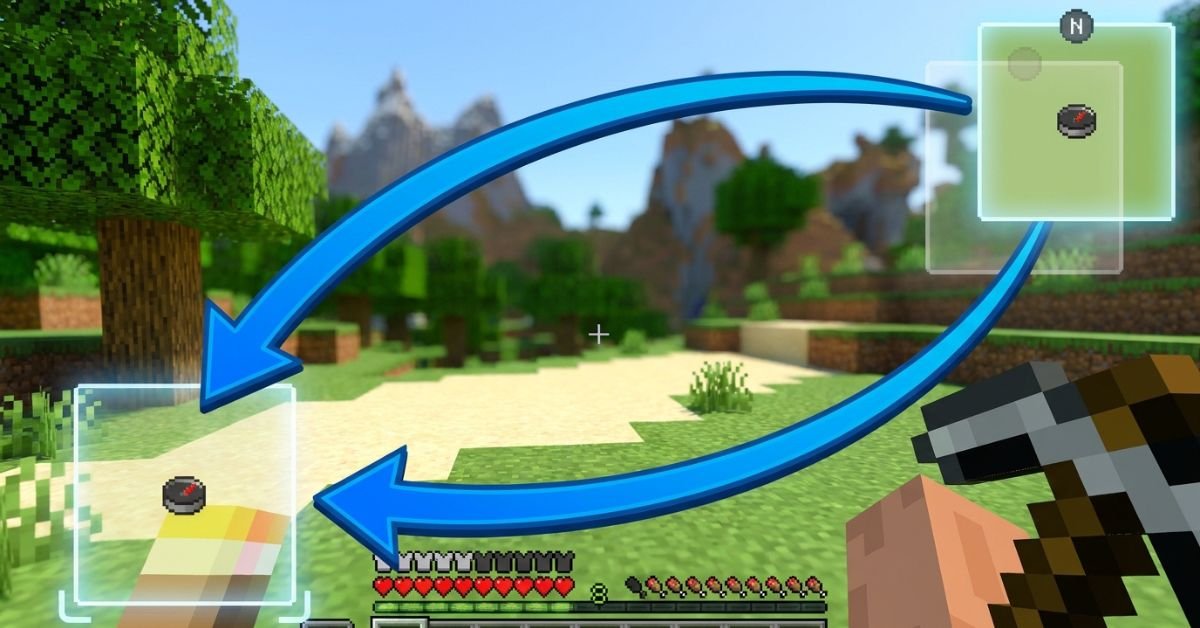
JourneyMap minimap sits stubbornly in the top right, blocking your hotbar or clashing with other HUD mods, and you just want it moved without breaking anything.
JourneyMap remains one of the most popular and powerful minimap mods for Minecraft Java Edition. It gives you a live radar-style minimap, full-screen mapping, waypoints, cave mapping, and deep customization. In 2026, with Minecraft 1.21+ and newer Fabric/Forge versions, the minimap positioning system is more flexible than ever, including true custom dragging.
Understanding JourneyMap’s Minimap System
JourneyMap displays a small, real-time map in one corner of your screen by default (usually top right). It shows terrain, mobs, players, waypoints, and info like coordinates or biome.
The mod supports two independent minimap presets. Each preset can have its own position, style (square/circular), zoom, displayed elements, and opacity. Switch between them instantly with a single keypress.
Key hotkeys you’ll use often:
- J Open full-screen map (and access settings from there)
- Ctrl + J Toggle minimap visibility
- ** (backslash) Switch between minimap presets
- = / – Zoom minimap in/out
- [ Cycle map types (terrain, cave, etc.)
Position options include: Top Right, Bottom Right, Bottom Left, Top Left, Top Center, Center, and Custom.
Step-by-Step: How to Change Minimap Position
Method 1: Quick Preset Changes (Easiest for Most Players)
- Press J to open the full-screen map.
- Click the Settings icon (gear) at the bottom, or press O.
- Navigate to Minimap (or Minimap Preset 1 / Preset 2).
- Find the Position dropdown.
- Choose from Top Right, Bottom Right, Bottom Left, Top Left, Top Center, or Center.
- Close the menu changes apply immediately.
You can configure Preset 1 and Preset 2 differently, then switch live with the ** key. This lets you have one clean minimap for exploration and another packed with info for building or PvP.
Method 2: True Custom Position (Drag Anywhere)
- Open full-screen map with J → Settings.
- Set Position to Custom.
- Return to the game world.
- Hold the configured move key (or use arrow keys) to drag the minimap freely.
- Fine-tune with the Minimap Key Move Pixel Offset setting (default 0.001) for precise pixel-level control.
Custom mode gives you pixel-perfect placement anywhere on screen perfect when other mods clutter the corners.
Method 3: In-Game Adjustments and Hotkeys
Some players prefer direct controls:
- Open settings via full-screen map for full access.
- Adjust related options like opacity, shape, info slots, and what displays (waypoints, players, mobs, light level, etc.).
Pro tip: After moving, test in different situations underground caves, dense forests, or with shaders active because render layers can shift slightly.
Comparison: Position Options in JourneyMap (2026)
| Position Option | Best For | Flexibility | Easy to Switch? | Notes |
|---|---|---|---|---|
| Top Right (Default) | Standard clean HUD | Low | Yes | Classic placement, rarely overlaps hotbar |
| Bottom Right | When top is crowded | Low | Yes | Good with action bars on left |
| Bottom Left | Players who read left-to-right | Low | Yes | Common with inventory-focused mods |
| Top Left | Minimal interference | Low | Yes | Avoid if you have chat or notifications |
| Top Center / Center | Dramatic or centered builds | Medium | Yes | Can feel intrusive during combat |
| Custom | Perfect personal HUD | Highest | Moderate | Drag freely + pixel offset tuning |
Custom wins for most experienced players once you spend five minutes setting it up.
Myth vs Fact
Myth: You can only put the minimap in the four corners. Fact: JourneyMap supports Top Center, Center, and full Custom drag mode for anywhere on screen.
Myth: Changing position requires editing config files manually. Fact: Everything is done in-game through the settings menu or hotkeys no file editing needed in recent versions.
Myth: The minimap resets position every time you restart Minecraft. Fact: Settings save per world/profile as long as you close the game properly.
Myth: Custom position only works with certain Minecraft versions. Fact: As of 2026 versions (1.21+), Custom drag and presets work reliably on Fabric, Forge, and NeoForge.
Real-World Insights From Years of Modded Play
After running JourneyMap in hundreds of modpacks across different Minecraft versions from 1.16 through 1.21+, the biggest mistake I see is players fighting the default top-right position instead of using the two presets properly. One preset for a minimal radar during exploration, another fully loaded for base building or resource hunting switching with feels like night and day.
Another common issue: conflicts with shader packs or other HUD mods (like AppleSkin or inventory tweaks). Setting Position to Custom and nudging it a few pixels usually solves overlap instantly. In 2025–2026 testing, the in-game settings menu has become even more responsive, with changes applying without needing a relog.
FAQs
How do I move the JourneyMap minimap to a different corner?
Press J to open the full map, click Settings (or press O), go to Minimap settings, and change the Position dropdown to Bottom Right, Top Left, or any preset option. Changes apply live.
Can I drag the JourneyMap minimap anywhere on screen?
Yes. Set Position to Custom in the settings menu, then use arrow keys or the move control to drag it freely. Adjust the pixel offset for finer control.
How do I switch between two different minimap presets?
The default key is ** (backslash). Configure Preset 1 and Preset 2 separately with different positions, sizes, or displayed info, then switch on the fly.
Why can’t I move my JourneyMap minimap?
Make sure you’re not in a conflicting mod setup (like certain VR mods). Try setting Position to Custom, or check that the minimap isn’t disabled. Restarting the game or updating JourneyMap often fixes stubborn cases.
Does changing minimap position affect performance?
Position changes are purely visual and have zero impact on FPS. Adjust opacity or disable heavy features (like high-quality cave mapping) if you need performance gains instead.
Is there a way to completely hide or disable the minimap?
Yes use Ctrl + J to toggle it off quickly, or turn off “Show Minimap” in the settings for a permanent change.
Conclusion
Changing the minimap position in JourneyMap comes down to understanding presets, the Position dropdown, and Custom drag mode. The core entities minimap presets, position options (corners + custom), hotkeys like J and , and in-game settings menu give you full control over how the mod fits your playstyle.
-

 ENTERTAINMENT12 months ago
Tesla Trip Planner: Your Ultimate Route and Charging Guide
-

 TECHNOLOGY12 months ago
FaceTime Alternatives: How to Video Chat on Android
-

 BLOG12 months ago
Camel Toe Explained: Fashion Faux Pas or Body Positivity?
-

 BUSNIESS12 months ago
Careers with Impact: Jobs at the Australian Services Union
-

 BLOG11 months ago
Jalalabad India: A Hidden Gem of Punjab’s Heartland
-

 FASHION11 months ago
Wrist Wonders: Handcrafted Bracelet Boutique
-

 ENTERTAINMENT11 months ago
Centennial Park Taylor Swift: Where Lyrics and Nashville Dreams Meet
-

 BUSNIESS11 months ago
Chief Experience Officer: Powerful Driver of Success